Draw a box around the figure or table
Open the PDF from Library on a desktop computer. On the original PDF page, select Area highlight in the bottom toolbar and drag around the figure or table. Repple saves the crop when you release the mouse.
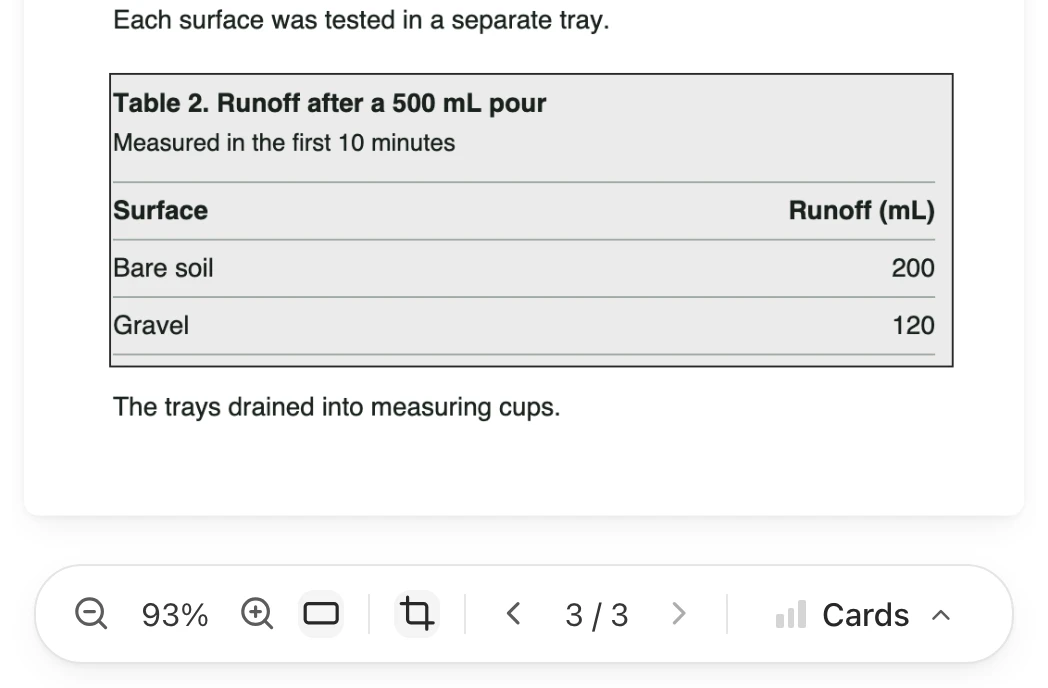
Include the caption in the box. For a table, keep the column headings and units. For a chart, keep the axis labels and legend.
Attach a note to the screenshot
Click the highlighted box on the page to open its entry in Highlights. Type your note below the screenshot and click the up arrow to save it.
| Surface | Runoff (mL) |
|---|---|
| Bare soil | 200 |
| Gravel | 120 |
Gravel produced 80 mL less runoff than bare soil. Check whether the trays had the same slope.
Find the screenshot and jump back to the page
Reopen the same PDF and click Highlights at the top right. If a note is already open, click All highlights. Use Filter highlights to choose Areas, or type same slope in Search highlights to find the example note. Click the screenshot to open the note and bring the original highlight into view. To return to it again from the open note, click the page number under the screenshot (Jump to this highlight).
For marking passages while reading on a phone, see how to highlight and take notes on a PDF on your phone.